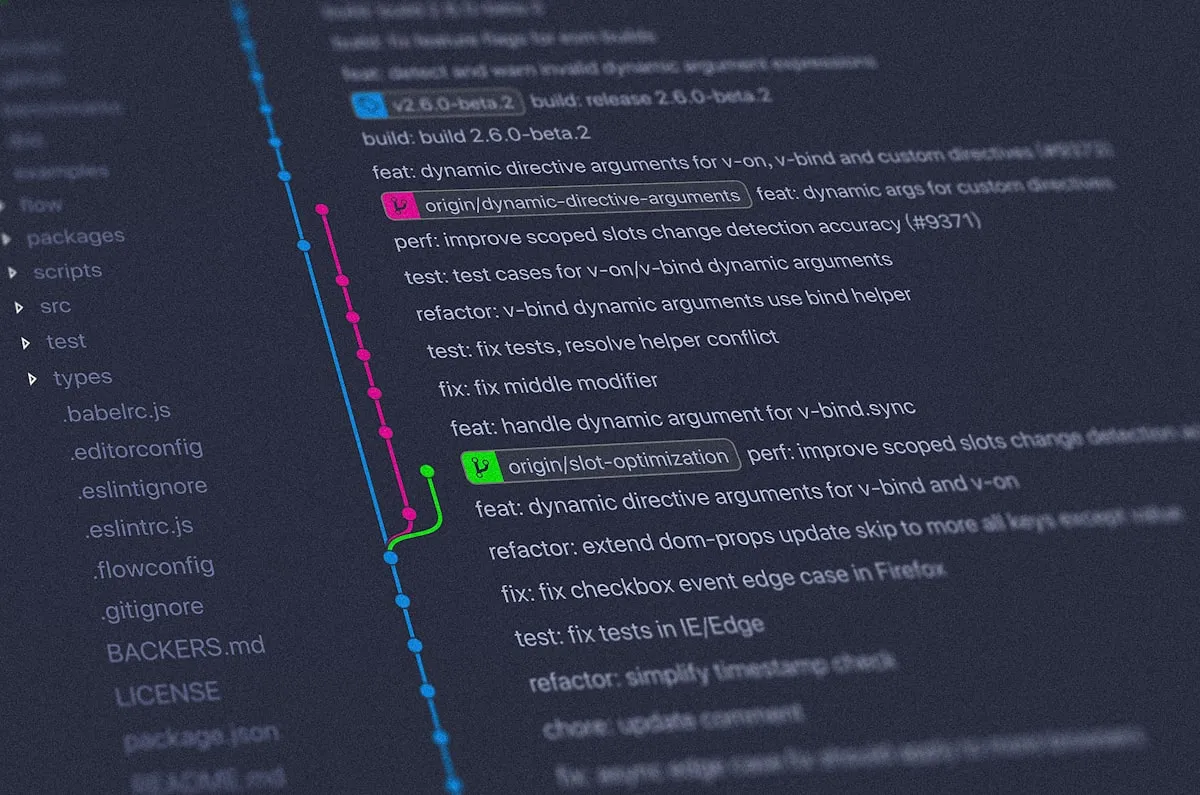
Git Workflow Best Practices — Team Collaboration & Version Control
Introduction: Git as Team Foundation
Git is an essential tool for every developer, but using it effectively requires understanding best practices. Whether you’re working solo or in a large team, proper Git workflows ensure clean history, fewer merge conflicts, and smooth collaboration.
This comprehensive guide covers Git workflows, branching strategies, commit best practices, and team collaboration patterns.
Table of Contents
- Why Git Workflows Matter
- Branching Strategies
- Commit Best Practices
- Pull Request Workflow
- Merge vs Rebase
- Handling Conflicts
- Advanced Git Commands
- Team Collaboration Patterns
- Git Hooks & Automation
- Common Issues & Solutions
- Conclusion
Why Git Workflows Matter
Proper Git workflows provide:
- Clear history: Easy to understand what changed and why
- Easier collaboration: Reduce merge conflicts and confusion
- Better debugging: Use
git bisectto find regressions - Accountability: Clear commit history shows who changed what
- Code review: Well-organized branches make code review easier
Branching Strategies
Branching strategies provide a structured approach for managing multiple parallel development efforts. Different strategies suit different team sizes and deployment frequencies.
Git Flow
A comprehensive branching model for larger projects with scheduled releases.
main (release branch)
├── develop (development branch)
│   ├── feature/user-auth
│   ├── feature/payment-integration
│   └── bugfix/login-error
├── release/v1.2.0
└── hotfix/security-patch
When to use: Large teams, scheduled releases, multiple versions in production
GitHub Flow
A simpler, more modern approach ideal for continuous deployment. Each feature branch leads directly to the main branch with minimal overhead.
main (always production-ready)
├── feature/add-search
├── bugfix/fix-nav
└── docs/update-readme
When to use: Startups, continuous deployment, fast-moving teams
Trunk-Based Development
Developers commit to a single main branch frequently with short-lived branches.
main (source of truth)
├── feature-1 (short-lived, 1-2 days)
├── feature-2 (short-lived, 1-2 days)
└── hotfix-3 (short-lived, hours)
When to use: High-performing teams, continuous integration culture
Commit Best Practices
Well-structured commit messages serve multiple purposes: they help other developers understand what changed and why, enable automated tooling, and create a searchable history of your project.
Conventional Commits
Follow a standard format for commit messages to make history readable and enable automated tooling.
# Format: <type>(<scope>): <subject>

# Types: feat, fix, docs, style, refactor, perf, test, chore
# Scope: optional, the part of codebase affected
# Subject: imperative, lowercase, no period

git commit -m "feat(auth): add two-factor authentication"
git commit -m "fix(api): handle null response from server"
git commit -m "docs: update installation instructions"
git commit -m "refactor(utils): simplify date formatting"
git commit -m "perf(bundle): reduce initial bundle size"
Detailed Commit Messages
Detailed messages provide context and reasoning for changes, making it easier for code reviewers and future maintainers to understand the intent behind the code.
git commit -m "feat(payment): implement Stripe integration

- Add Stripe API client initialization
- Create payment processing endpoint
- Add webhook handler for payment events
- Update tests for payment module

Closes #123"
Commit Best Practices
Following these practices ensures that your commit history is clean, understandable, and useful for debugging, auditing, and collaboration.
- Atomic commits: Each commit should represent one logical change
- Frequent commits: Commit often to keep history granular
- Meaningful messages: Help future developers (and future you) understand why
- Review before committing: Use
git diffto verify changes
# View changes before committing
git diff
git diff --staged

# Verify commit before pushing
git log --oneline -5
Pull Request Workflow
A structured pull request process ensures code quality, maintains team standards, and facilitates knowledge sharing. This workflow balances thoroughness with efficiency.
Creating a Pull Request
# Create and checkout feature branch
git checkout -b feature/user-profile

# Make changes and commit
git add .
git commit -m "feat(profile): add user profile page"

# Push to remote
git push origin feature/user-profile

# Create PR on GitHub/GitLab UI
Pull Request Guidelines
These guidelines ensure PRs are well-documented, properly tested, and easy to review, leading to higher code quality and faster merges.
Before requesting review:
- Branch is up to date with main
- Commit history is clean (squash if needed)
- Tests pass locally
- Code follows project standards
PR description template:
## Description
Brief description of what this PR does.

## Related Issue
Closes #123

## Type of Change
- [ ] Bug fix
- [ ] New feature
- [ ] Breaking change
- [ ] Documentation update

## How Has This Been Tested?
Describe testing approach:
- [ ] Unit tests
- [ ] Integration tests
- [ ] Manual testing

## Screenshots (if applicable)
...

## Checklist:
- [ ] My code follows the project's style guidelines
- [ ] I have performed a self-review of my own code
- [ ] I have commented my code, particularly in hard-to-understand areas
- [ ] I have made corresponding changes to the documentation
- [ ] My changes generate no new warnings
Merge vs Rebase
Understanding the differences between merge and rebase helps you choose the right tool for maintaining a clean, understandable git history while preserving the benefits of different workflows.
Merge Commits
Preserves complete history, creates merge commit.
git merge feature/user-auth
# Creates: Merge branch 'feature/user-auth' into mainPros: Full history preserved, easy to revert Cons: Cluttered commit history
Rebase
Rewrites history to keep linear flow. Use this on local branches to maintain a clean history before merging to shared branches.
git rebase origin/main
# Replays commits on top of mainPros: Clean, linear history Cons: Rewrites history (use only on local branches)
Recommended Approach
# For local feature branches: rebase to keep clean
git rebase origin/main
git push --force-with-lease origin feature/branch

# When merging to main: create merge commit (for traceability)
git merge --no-ff feature/branch
Handling Conflicts
Merge conflicts occur when changes to the same file occur on different branches. Understanding how to resolve them properly is essential for smooth collaboration.
Understanding Merge Conflicts
<<<<<<< HEAD
  <button class="btn btn-primary">
=======
  <button class="btn btn-secondary">
>>>>>>> feature/update-button
Resolving Conflicts
The resolution process involves identifying the conflicting sections, choosing which changes to keep, and testing to ensure the resolved code works correctly.
# View conflict status
git status

# View all conflicts
git diff

# Manually edit files to resolve

# After resolving
git add .
git commit -m "resolve: merge conflicts in button styles"
Using Merge Tools
Merge tools provide visual representations of conflicts, making it easier to understand changes and make informed decisions about resolution.
# Visual merge tool
git mergetool

# VS Code as merge tool
git config --global merge.tool vscode
git config --global mergetool.vscode.cmd 'code --wait $MERGED'
Advanced Git Commands
These advanced techniques enable powerful workflows for complex scenarios like interactive rebasing, cherry-picking specific commits, and debugging regressions.
Git Rebase Interactive
# Rebase last 3 commits
git rebase -i HEAD~3

# Options in editor:
# pick   - use commit
# reword - use commit, edit message
# squash - use commit, meld into previous
# fixup  - like squash, discard commit message
Finding Bugs with Bisect
# Start binary search for bug
git bisect start

# Mark current as bad
git bisect bad

# Mark last known good commit
git bisect good v1.0.0

# Git will checkout commits to test
# Mark each as good or bad
git bisect good  # or git bisect bad

# When found, show result
git bisect log
Cherry-Picking
# Apply specific commit to current branch
git cherry-pick abc123

# Cherry-pick range
git cherry-pick abc123..def456
Stashing Work
# Save work in progress
git stash save "WIP: feature implementation"

# List stashes
git stash list

# Apply stash
git stash apply stash@{0}

# Apply and remove
git stash pop
Team Collaboration Patterns
Code Review Guidelines
For reviewers:
- Check logic and implementation
- Verify tests are adequate
- Look for potential bugs or edge cases
- Provide constructive feedback
- Approve when satisfied
For authors:
- Keep PRs focused and reasonably sized
- Respond to feedback promptly
- Make requested changes in new commits (don’t force-push)
- Mark conversations as resolved after fixing
Release Management
# Create release branch
git checkout -b release/v1.2.0

# Update version numbers
# Create release notes
# Fix bugs if needed

# Tag release
git tag -a v1.2.0 -m "Version 1.2.0 release"

# Merge back to develop and main
git checkout main
git merge release/v1.2.0
git checkout develop
git merge release/v1.2.0
Git Hooks & Automation
Pre-Commit Hook
#!/bin/sh
# .git/hooks/pre-commit

# Run linter
npm run lint
if [ $? -ne 0 ]; then
  echo "Linting failed. Commit aborted."
  exit 1
fi

# Run tests
npm test
if [ $? -ne 0 ]; then
  echo "Tests failed. Commit aborted."
  exit 1
fi
Husky + Lint-Staged
{
  "husky": {
    "hooks": {
      "pre-commit": "lint-staged",
      "pre-push": "npm test"
    }
  },
  "lint-staged": {
    "*.js": ["eslint", "prettier --write"],
    "*.ts": ["eslint", "prettier --write"]
  }
}
Common Issues & Solutions
Accidentally Committed to Main
# Undo last commit, keep changes
git reset --soft HEAD~1

# Create branch and push
git checkout -b feature/my-feature
git push origin feature/my-feature
Need to Recover Deleted Branch
# Find deleted branch
git reflog

# Recreate branch at specific commit
git checkout -b recovered-branch abc123
Large Files Committed by Mistake
# Remove file from history
git filter-branch --tree-filter 'rm -f <file>' HEAD

# Or use BFG Repo Cleaner for large repos
bfg --delete-files <file> .git
Conclusion
Mastering Git workflows is crucial for effective development. Whether you choose Git Flow, GitHub Flow, or Trunk-Based Development, consistency and clear commit practices will make your team more productive. Remember: good version control practices scale with your project and team.