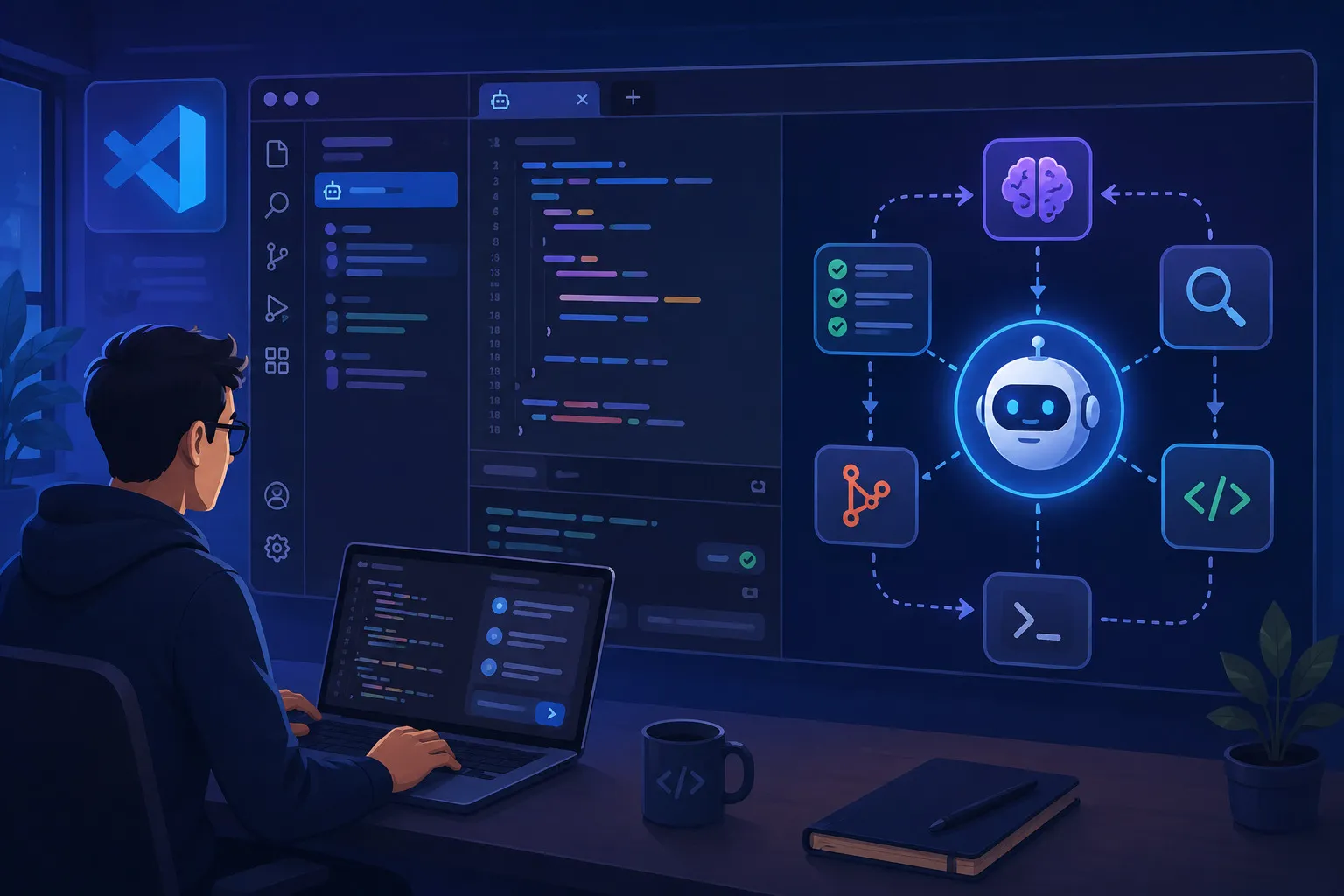
VS Code Agents Window: How Agent-First Workflows Actually Work for Developers
Table of Contents
- Introduction
- What Is the VS Code Agents Window?
- Code-First vs Agent-First: What Is Actually Different?
- The Most Important Parts of the Agents Window
- How Sessions and Isolation Work
- Why Customizations Matter So Much
- Practical Workflows That Fit the Agents Window
- Limitations and Things to Watch Carefully
- Checklist Before a Team Adopts It
- FAQ
Introduction
For the last few years, many developers have used AI inside the editor in roughly the same way: open a file, highlight some code, then ask for an explanation, a refactor, or a small implementation draft. That workflow is still useful, but a different pattern is slowly becoming more common: agent-first work. In that model, developers hand over a larger task, and the agent plans steps, edits files, runs commands, and validates results.
VS Code is now giving that pattern a dedicated surface through the Agents Window. This is not just another chat pane. Microsoft designed it as a separate window for managing agent sessions, reviewing file changes, running validation tasks, and handling customizations such as agents, skills, instructions, hooks, MCP servers, and plugins.
This article explains what the VS Code Agents Window is, why it matters for modern developers, when it is worth using, and which limitations still matter before a team makes it part of everyday work.
What Is the VS Code Agents Window?
The VS Code Agents Window is a dedicated Visual Studio Code window built for agent-first or task-first workflows. The main editor remains optimized for code-centric work such as editing, debugging, notebooks, extensions, and remote development, while the Agents Window is optimized for prompt-driven tasks and session-based agent work across projects.
In practice, the Agents Window gives developers several important capabilities:
- opening and continuing multiple agent sessions across different workspaces
- reviewing agent-generated file changes in a dedicated panel
- running tasks or commands to validate the agent’s work
- managing AI customizations in one place
- switching between engines such as Copilot CLI, Copilot Cloud, and Claude agent depending on the workspace context
Because sessions and configuration are shared with the main VS Code window, developers do not need to commit to a single way of working. You can move between the traditional editor workflow and agent-driven work depending on the task.
Code-First vs Agent-First: What Is Actually Different?
The official VS Code documentation draws a clear distinction between two primary approaches.
1. Code-first
In this mode, the editor remains the main interface. Developers write and review code directly while AI acts as an assistant at specific points: explaining code, suggesting refactors, generating tests, or helping with debugging.
2. Agent-first
In this mode, chat and sessions become the center of the workflow. Developers describe a higher-level goal, and the agent breaks the task into steps, gathers context, edits files, runs commands, and tries to self-correct when something goes wrong.
The key difference is not just the UI. It is the unit of work.
- In code-first workflows, the unit of work is often a file or a section of code.
- In agent-first workflows, the unit of work is a task or objective.
That means the Agents Window is better suited when you want to think in terms of work items like these:
- “implement this small feature”
- “find the root cause of this build error and propose a patch”
- “prepare the changes and run the relevant tests”
- “review the agent’s changes and leave feedback in the diff”
The Most Important Parts of the Agents Window
According to the official documentation, four main areas define the Agents Window experience.
1. Sessions list
This panel shows active and previous sessions across workspaces. Sessions can be grouped by project or time, pinned, renamed, or marked as done. That matters because in an agent-first workflow, sessions are not just chat history. They represent tracked work.
2. Customizations panel
Below the sessions list is a panel for managing AI customizations. This is where developers can view and control:
- Agents
- Skills
- Instructions
- Hooks
- MCP Servers
- Plugins
This panel makes it clear that Microsoft is treating agent runtime behavior as something configurable, not just as a model choice.
3. Chat area
The center area is still where prompts are written, progress is observed, and the agent is guided. But in the Agents Window, chat is tightly connected to sessions, file changes, validation tasks, and sub-sessions.
4. Changes panel
The right panel shows the file explorer and the list of file changes made by the agent. Developers can open diffs, leave feedback directly on edits, and then decide whether to commit, merge, check out, or discard those changes.
This is important because reviewing agent output is no longer buried in the chat stream. It becomes part of a clearer engineering review flow.
How Sessions and Isolation Work
One of the most important ideas in the Agents Window is that each session has more structured working context.
When starting a new session, the developer chooses:
- a local folder or GitHub repository
- the agent type
- the isolation mode for the session
For Copilot CLI sessions, VS Code supports two main patterns:
1. Folder isolation
The agent works directly in the main workspace. This is simpler, but the agent’s changes are applied directly to the files you are already using.
2. Worktree isolation
The agent works in a separate folder backed by a Git worktree. Its changes remain isolated until you decide to merge them. This is much safer for larger or more experimental tasks.
The official docs also explain that sessions can run on remote machines via SSH or dev tunnels. That matters because agent workflows no longer need to stay tied to your local laptop. You can use another machine with a better environment or more suitable resources.
The Agents Window also supports sub-sessions for parallel work inside the same workspace. That is useful when you want the agent to explore a different branch of work without interrupting the main session.
Why Customizations Matter So Much
One of the most interesting aspects of the Agents Window is how it makes agent configuration visible instead of hiding it across files and scattered settings.
Based on Microsoft documentation and practical write-ups, these customizations include:
- Agents for defining personas and tool access
- Skills for portable instruction folders that load when relevant
- Instructions for shaping AI output behavior
- Hooks for running shell commands at specific lifecycle points
- MCP Servers for connecting agents to external tools through the MCP standard
- Plugins as packaged bundles of multiple customizations
The implication is significant. Agents are no longer only about picking a stronger model. They are also about shaping the runtime: which tools are available, which coding habits must be followed, which validations run automatically, and which integrations exist.
At a deeper level, this shifts the discussion away from “which model is best” toward “which orchestration system makes the model genuinely useful in real engineering workflows”.
Practical Workflows That Fit the Agents Window
Not every task belongs in the Agents Window. But some workflows fit it especially well.
1. Implementation tasks that are larger, but still well-defined
For example, adding a small feature across multiple files, changing project configuration, or generating tests for a module that already has a clear shape.
2. Debugging that requires exploring several areas of a project
Because the agent can inspect files, run commands, and attempt self-correction, the Agents Window is well suited for investigations that feel awkward in a single chat thread.
3. Reviewing agent output as diffs
If you want to separate the phase of “let the agent work” from the phase of “review the results carefully,” the Changes panel offers a cleaner flow than reading patch snippets inside chat.
4. Safe experimentation with worktree isolation
If you are not yet sure whether the output should be kept, worktree isolation creates a safer boundary between the agent’s experiment and your main branch.
5. Cross-project or multi-session work
Because all sessions can be managed from one window, developers working across multiple repositories will often get more value than they would from a chat workflow tied too tightly to a single workspace.
Limitations and Things to Watch Carefully
The Agents Window is promising, but it does not mean every problem is solved.
Some practical limitations from the official documentation are worth keeping in mind:
-
It is still in preview
Microsoft still labels it as preview, so behavior, limitations, and UX can still change. -
Agent support is not universal yet
The Agents Window currently centers on Copilot CLI, Copilot Cloud, and Claude agent. Some local or third-party agent workflows still need to be managed from the main VS Code window. -
Multi-root sessions are not supported yet
If your team depends heavily on multi-root workspaces, this matters. -
The integrated browser is not fully automatic
The agent cannot always open the integrated browser on its own. Developers still need to launch it from the command palette or from a localhost link. -
Governance still matters
If your team uses a GitHub organization with restrictions on models, plugins, or MCP connections, customization freedom will follow those policies. That is good for control, but teams should understand it early. -
Agent-first work still needs human review
Even if the agent can write code, run commands, and self-correct, developers still need to review diffs, validate builds and tests, and judge whether the changes are systemically correct.
Checklist Before a Team Adopts It
Use this checklist before making the Agents Window a regular part of team workflow:
- Does the team actually have tasks that are better delegated as objectives instead of manual file edits?
- Is the review flow for agent-generated changes already clear?
- Do people understand when to use folder isolation versus worktree isolation?
- Are important custom instructions, skills, or hooks already prepared?
- Are validation tasks such as builds and tests easy to run from a session?
- Does the team understand the preview limitations and supported agent types?
- Are trust settings, GitHub access, and organizational governance already safe enough?
- Do developers still know when to return to the normal editor instead of forcing every task into agent-first mode?
If most answers are still unclear, it is better to adopt the Agents Window gradually rather than making it the default for everything.
FAQ
Does the Agents Window replace the normal VS Code editor?
No. Microsoft positions it as a complement. The main editor remains better for intensive editing, debugging, notebooks, and code-first work. The Agents Window is better for task-oriented workflows.
When should I use the Agents Window instead of regular chat in the editor?
When the task is larger than a small edit, needs a session you can resume later, benefits from structured diff review, or requires an agent workflow with clearer isolation.
Can the Agents Window be used across projects?
Yes. One of its strongest advantages is session management across many workspaces without opening each project in a separate window.
Do all extensions work automatically in the Agents Window?
Not always. Extensions that contribute only static content such as themes, grammars, languages, or keybindings usually activate automatically. Other extensions may need to be explicitly enabled through the relevant settings.
Is the Agents Window safe to use with remote machines?
It can be, as long as the connection and authentication are handled correctly. The official docs explicitly warn that dev tunnels should require authentication because anonymous access is risky, especially when auto-approval modes are enabled.
References
- VS Code Docs: Use the Agents Window (Preview)
- Visual Studio Magazine: Hands On with the New Agents Window in VS Code 1.120
- Juan G. Carmona: VSCode Agents Window, An AI Harness Inside Visual Studio Code
Related Articles
- Context Engineering for Developers: How to Make AI More Accurate in Coding Workflows
- When Do You Need an AI Agent, and When Is Regular Automation Enough?
- AI Native Engineer: Skills, Workflow, and Mindset for Modern Builders
The Agents Window matters not because it adds one more chat surface to VS Code, but because it starts treating agents as an engineering workflow that needs sessions, isolation, review, validation, and governance.
In your workflow, which tasks are best moved into an agent-first mode, and which ones are still safer to handle directly in the editor? That question matters more than trying a new feature just because it is getting attention.