Python Fundamentals: Variables, Types, and Control Flow
Python is a friendly first programming language because its syntax stays close to plain instructions: store a value, check a condition, repeat a task, then print a result.
This article starts the Python Fundamentals series. We will cover the pieces you will use constantly: variables, data types, operators, input/output, conditionals, and loops. The goal is not to memorize every Python feature. The goal is to get comfortable writing small scripts on your own.
How to use this article
Do not only read the code blocks. Create a practice folder, copy one example into main.py, run it, then change one small part. Change an age value, adjust an if condition, or add a print() call. That is how you connect the code to its result.
As a program runs, ask three questions: which values is it storing, which condition evaluates to True, and which line will run next? These simple questions stay useful when your programs gain more conditions and loops.
Quick setup
Use a modern Python version, ideally Python 3.11 or newer. Check your installed version with:
python --versionOn some systems, the command is:
python3 --versionPython on Linux
Many desktop Linux distributions include Python 3 by default because system tools use it. In most cases, check it with python3 --version, then run a file with python3 main.py.
Still perform the check: a minimal Linux image, container, some WSL setups, or a lightweight distribution may not include Python. If the command is missing, install the python3 package using your distribution’s package manager.
Install Python on Windows
For getting started, use the official Python installer. It is the simplest path and is enough for every example in this series.
- Open python.org/downloads/windows and download the latest stable Python 3 installer.
- Run the installer and check Add Python to PATH on the first screen. This matters because it lets you run Python from a terminal.
- Choose Install Now and wait for the installation to finish.
- Close and reopen PowerShell or Command Prompt, then verify the installation:
py --versionIf you see a version such as Python 3.13.x, the installation worked. On Windows, py is usually the most consistent command because the Python Launcher selects an available Python installation.
To create a practice folder from PowerShell:
mkdir python-fundamentals
cd python-fundamentals
code .
After creating main.py, run it with:
py main.pyIf code . is not recognized, open VS Code, select File > Open Folder, and open python-fundamentals. You do not need Conda, pyenv, or another version-management tool to follow this fundamentals series.
For early practice, you only need a terminal and an editor such as VS Code. Create a file named main.py, then run:
python main.pyOn Windows, you can also use py main.py as shown above.
If that command works, you are ready.
Start with this smallest possible program:
# File: 01-hello.py
print("Hello, Python!")
Save the file and run it again. print() is a built-in Python function that displays a value in the terminal. The terminal is where you see program output and error messages, so get comfortable returning to it often.
Variables and assignment
A variable is a name that stores a value. In Python, you do not need to write the type explicitly.
# File: 02-variables.py
name = "Ayu"
age = 21
is_active = True

print(name)
print(age)
print(is_active)
The = sign means assignment: the value on the right is stored in the name on the left. Variables can change:
# File: 03-counter.py
counter = 1
counter = counter + 1

print(counter)  # 2
Choose clear variable names. total_price is easier to understand than tp, especially once your code grows.
Understanding assignment
The line total = subtotal + tax is not a mathematical equality. Python evaluates the right side first, then stores that result in the name on the left. That is why a variable can use its old value to calculate a new one:
# File: 04-balance-update.py
balance = 100_000
balance = balance - 25_000

print(balance)  # 75000
This pattern is used for counters, running totals, and program state. Python variable names usually use snake_case: lowercase words separated by underscores, such as item_count. A name cannot start with a digit, contain spaces, or overwrite built-ins such as list, str, and input.
Basic data types
Python has a few core data types you will use often.
# File: 05-basic-data-types.py
quantity = 3              # int
price = 19.99             # float
product = "Keyboard"      # str
is_paid = False           # bool
discount = None           # NoneType
Use int for whole numbers, float for decimals, str for text, bool for true/false values, and None for an empty or not-yet-available value.
You can inspect a value’s type with type():
# File: 06-check-types.py
print(type(quantity))
print(type(product))
Python is flexible, but types still matter. Many beginner errors happen because a program mixes text and numbers without converting them first.
Convert types deliberately
Data sometimes needs to change form. Use int(), float(), or str() explicitly so the intent is clear.
# File: 07-type-conversion.py
quantity_text = "3"
quantity = int(quantity_text)
price = float("19.99")

print(quantity * 2)  # 6
print(f"Price: {price}")
Not every string can become a number. int("three") fails because Python cannot guess the intended number. None is also different from an empty string or zero; it usually means “there is no value yet.”
# File: 08-none-value.py
selected_coupon = None

if selected_coupon is None:
    print("No coupon selected yet")
Strings and f-strings
A string is text. You can use single or double quotes.
# File: 09-strings.py
first_name = "Ayu"
last_name = "Pratama"
To combine text and variables, use an f-string:
# File: 10-f-string.py
message = f"Hello, {first_name} {last_name}!"
print(message)
F-strings keep output readable without a long chain of + operations.
You can put a simple expression inside an f-string and clean user text with common string methods:
# File: 11-string-methods.py
price = 25_000
quantity = 2
raw_name = "  Ayu  "

print(f"Total: {price * quantity}")
print(raw_name.strip().upper())  # AYU
strip() removes whitespace at the beginning and end, lower() makes text lowercase, and upper() makes it uppercase. String methods produce a new value, so save the result when you need it again: name = raw_name.strip().
Basic operators
Arithmetic operators handle calculations:
# File: 12-subtotal.py
subtotal = 100_000
tax = 10_000
total = subtotal + tax

print(total)
Important operators include:
# File: 13-arithmetic-operators.py
print(10 + 3)  # 13
print(10 - 3)  # 7
print(10 * 3)  # 30
print(10 / 3)  # 3.333...
print(10 // 3) # 3
print(10 % 3)  # 1
print(10 ** 3) # 1000
Here is how to read each operator:
+adds values.10 + 3produces13. It can also join strings, but do not mix strings and numbers without converting one of them first.-subtracts values.10 - 3produces7. Use it for a remaining balance or to reduce stock.*multiplies values.10 * 3produces30, such as an item price multiplied by its quantity./performs regular division. Its result is always afloat, even when it looks whole. That means10 / 2produces5.0, not5.//performs whole-number, or floor, division. It rounds the decimal result down.10 // 3produces3because three fits into ten three complete times.%is modulo: the remainder after division.10 % 3produces1because one remains after making three groups of three. It is useful for checking even and odd numbers:number % 2 == 0means the number is even.**raises a value to a power.10 ** 3means 10 x 10 x 10, so it produces1000.
// and % are often used together. For example, convert a total number of minutes into hours and remaining minutes:
# File: 14-minutes-to-hours.py
total_minutes = 135
hours = total_minutes // 60
minutes = total_minutes % 60

print(f"{hours} hours {minutes} minutes")  # 2 hours 15 minutes
For money or other values that need exact decimals, remember that a float can show long fractions because of how computers store numbers. For basic practice, float is fine. Later, for real money, use the smallest integer unit such as cents or learn about Decimal.
Comparison operators produce True or False:
# File: 15-comparison-operators.py
score = 85

print(score >= 80)  # True
print(score == 100) # False
print(score != 0)   # True
Logical operators combine conditions:
# File: 16-logical-operators.py
age = 20
has_ticket = True

can_enter = age >= 18 and has_ticket
print(can_enter)
Use and when all conditions must be true, or when one true condition is enough, and not to reverse a boolean value.
Order of operations matters too. Multiplication and division happen before addition and subtraction. Use parentheses when the intended calculation should be explicit.
# File: 17-operator-precedence.py
price = 50_000
quantity = 2
discount = 10_000

total = (price * quantity) - discount
print(total)  # 90000
To update a number, counter += 1 is a shorter form of counter = counter + 1.
Input and output
Use print() to display output.
# File: 18-welcome.py
print("Welcome to Python")
Use input() to ask the user for a value.
# File: 19-user-input.py
name = input("Name: ")
print(f"Hello, {name}")
The value returned by input() is always a string. If you need a number, convert it:
# File: 20-input-to-number.py
age_text = input("Age: ")
age = int(age_text)

print(age + 1)
If the user types something that is not a number, int() will raise an error. We will handle that more safely in a later article.
Before converting input, remove whitespace a user may have entered accidentally. At first, separate the work into three steps: receive input, convert it to the right type, then use the result. It is a little longer, but much easier to inspect when output is wrong.
# File: 21-clean-input.py
name = input("Name: ").strip()
city = input("City: ").strip().title()

print(f"{name} lives in {city}")
Control flow with if
Programs rarely run in a straight line without decisions. Use if, elif, and else for branching.
# File: 22-grade-conditions.py
score = 85

if score >= 90:
    grade = "A"
elif score >= 80:
    grade = "B"
elif score >= 70:
    grade = "C"
else:
    grade = "Needs review"

print(grade)
Pay attention to indentation. In Python, spacing is part of the language. Four spaces per indentation level is the usual convention.
Python checks conditions from top to bottom and runs the first matching block. Order therefore matters. This version is wrong: a score of 95 matches the first condition, so the A block can never run.
# File: 23-condition-order-bug.py
if score >= 70:
    grade = "C"
elif score >= 90:
    grade = "A"
Write the highest boundary first. You can also check a range with if 13 <= age <= 17:. When conditional output seems strange, print the value being checked and read each condition from top to bottom.
Loops with for
Use for to repeat work for each item in a collection or range.
# File: 24-greet-names.py
names = ["Ayu", "Budi", "Citra"]

for name in names:
    print(f"Hello, {name}")
To repeat over numbers, use range():
# File: 25-range-loop.py
for number in range(1, 6):
    print(number)
This prints numbers from 1 to 5. The ending value in range() is not included.
range() follows the form range(start, stop, step). The step is useful for counting backwards or skipping values.
# File: 26-countdown.py
for number in range(10, 0, -2):
    print(number)  # 10, 8, 6, 4, 2
Use enumerate() when you need both an item number and its value.
# File: 27-enumerate-tasks.py
tasks = ["Study", "Rest", "Practice"]

for index, task in enumerate(tasks, start=1):
    print(f"{index}. {task}")
You will learn lists in more detail in the next article. For now, think of tasks as a group of values Python can visit one at a time.
Loops with while
A while loop runs while its condition remains true.
# File: 28-while-counter.py
counter = 1

while counter <= 5:
    print(counter)
    counter = counter + 1
Be careful with infinite loops. Make sure something in the loop eventually makes the condition false.
A while loop fits when you do not know the number of repetitions in advance. For example, ask until the user gives an accepted answer.
# File: 29-while-until-yes.py
answer = ""

while answer != "yes":
    answer = input("Type yes to continue: ").strip().lower()

print("Continuing...")
Use for when the item count or range is known. Use while when repetition depends on a changing condition.
Mini project: grade checker
Now combine variables, input, type conversion, conditionals, and output.
# File: 30-grade-checker-basic.py
name = input("Name: ")
score = int(input("Score: "))

if score >= 80:
    result = "pass"
else:
    result = "review again"

print(f"{name}: {result}")
A slightly richer version:
# File: 31-grade-checker.py
name = input("Name: ")
score = int(input("Score: "))

if score >= 90:
    grade = "A"
elif score >= 80:
    grade = "B"
elif score >= 70:
    grade = "C"
else:
    grade = "D"

print(f"{name} got grade {grade}")
Small scripts like this already use the same pattern as larger programs: receive input, process data, make a decision, and show the result.
This version adds range validation. Trace the flow: the program receives input, while keeps the score in a sensible range, then the if chain selects exactly one grade.
# File: 32-grade-checker-validation.py
name = input("Name: ").strip()
score = int(input("Score (0-100): "))

while score < 0 or score > 100:
    print("Score must be between 0 and 100.")
    score = int(input("Score (0-100): "))

if score >= 90:
    grade = "A"
elif score >= 80:
    grade = "B"
elif score >= 70:
    grade = "C"
elif score >= 60:
    grade = "D"
else:
    grade = "F"

print(f"{name} got grade {grade}.")
This program still stops if the user enters letters for a score. That is a reasonable boundary for lesson one; we will improve it later with exception handling.
Common beginner mistakes
The first mistake is forgetting that input() returns a string.
# File: 33-input-string-bug.py
age = input("Age: ")
print(age + 1)  # error
Fix it with int():
# File: 34-input-number.py
age = int(input("Age: "))
print(age + 1)
The second mistake is using = for comparison.
# File: 35-assignment-comparison-bug.py
if score = 80:
    print("pass")
Use == to compare values:
# File: 36-equality-comparison.py
if score == 80:
    print("exactly 80")
The third mistake is inconsistent indentation. Pick four spaces and stay consistent.
The fourth mistake is comparing text with a number, or assuming Python will convert the type automatically.
# File: 37-string-number-comparison-bug.py
score = input("Score: ")
print(score >= 80)  # error: score is still a str
Convert the value before comparing: score = int(input("Score: ")).
Mini exercises
Try these exercises:
- Write a script that accepts a product name, price, and quantity, then prints the total.
- Write a script that checks whether a number is even or odd.
- Write a loop that prints numbers from 1 to 20, but only numbers divisible by 3.
- Write a grade checker with A, B, C, D, and F categories.
Do not rush to search for the answer. Type the code yourself, run it, read the error, and improve it. Debugging skill grows through small repetitions like this.
When reviewing your exercise, ask: do variable names explain their values, is numeric input converted, did you try boundary values such as 0 and 80, and does every loop have a way to stop? Clear code is more valuable than clever-looking code.
Next: functions and data structures
Once the basics feel familiar, the next step is writing cleaner code with functions and data structures such as lists, tuples, dictionaries, and sets. Continue with Python Functions and Data Structures to start breaking logic into reusable pieces.
If you want to see Python used for web development, save Build a Website with Flask as a later path after the fundamentals are stronger.
Related Articles
Keep reading within the same topic.
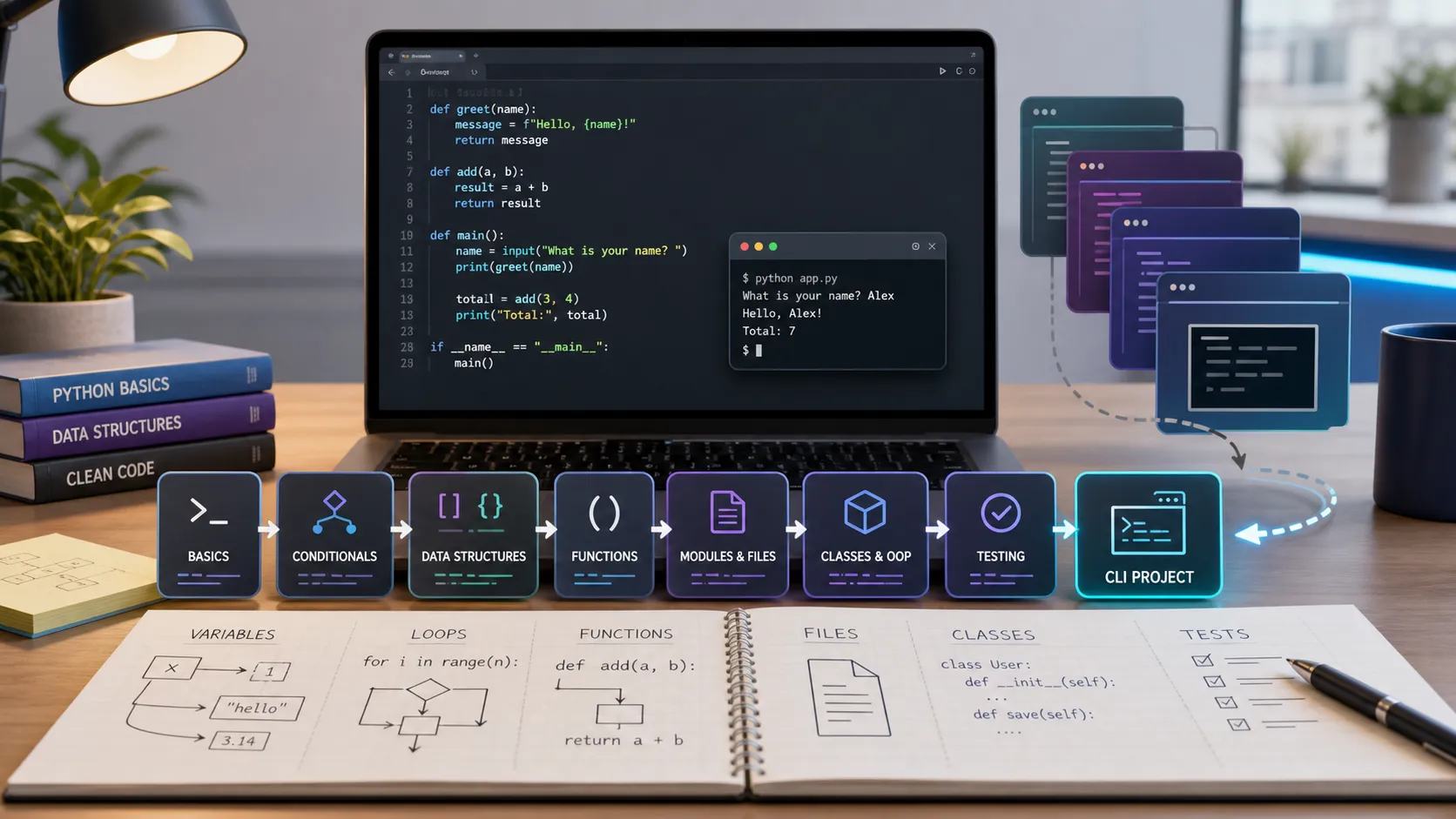
Python Fundamentals Learning Path: Series Recap and Next Steps
A practical recap of the Python Fundamentals series, with six lessons, key skills, checkpoints, and clear next steps after building the CLI project.
Python Functions and Data Structures: Lists, Tuples, Dicts, and Sets
Learn functions, parameters, return values, lists, tuples, dictionaries, sets, loops, and practical patterns for cleaner Python code.
Python CLI Mini Project: Build an Expense Tracker from Scratch
Build a Python CLI expense tracker from scratch using input, JSON file storage, functions, dataclasses, error handling, and basic testing.
Python Project Structure: venv, pip, Requirements, and Testing
Learn how to organize a Python project with folders, virtual environments, pip, requirements.txt, .env files, pytest, and a simple entry point.